¶ FAQs
¶ Q: Someone is trying to subscribe but said they are not getting the verification text message
A: Every subscriber must give consent to receive messages from you. During the sign-up process, we attempt to send them a verification text message. This is logged under “Pending” in your subscribers management.
¶ Q: My subscriber says they were getting the text messages now they have stopped.
A: There are a few reasons this could be happening, but the most common is that your subscriber opted out of receiving messages, either intentionally or accidentally.
Here’s a breakdown of how to troubleshoot:
- Search for your subscriber in your Active Subscriber list.
- Scenario 1:The subscriber is not in your Active Subscriber list.
- This means they likely opted out by replying "STOP" to one of your messages.
- Ask them to re-sign-up using your Sign-up page and follow the directions presented there.
- Alternatively, you can invite them to re-subscribe using the “Invite” button in your TextCaster dashboard and follow the instructions provided.
- This means they likely opted out by replying "STOP" to one of your messages.
- Scenario 2: The subscriber is present in your Active Subscriber list.
- Ask your subscriber to re-sign-up by navigating to your Sign-up page.
- Have them follow the directions presented on their screen (which will be unique to each subscriber).
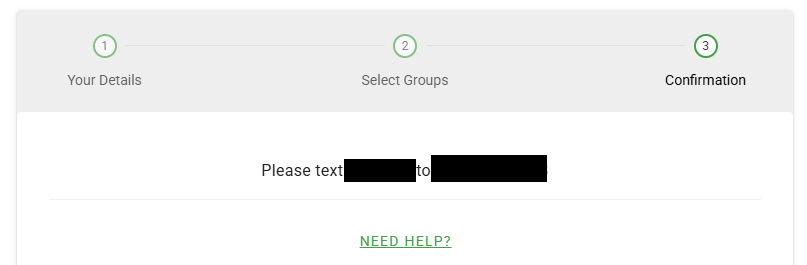
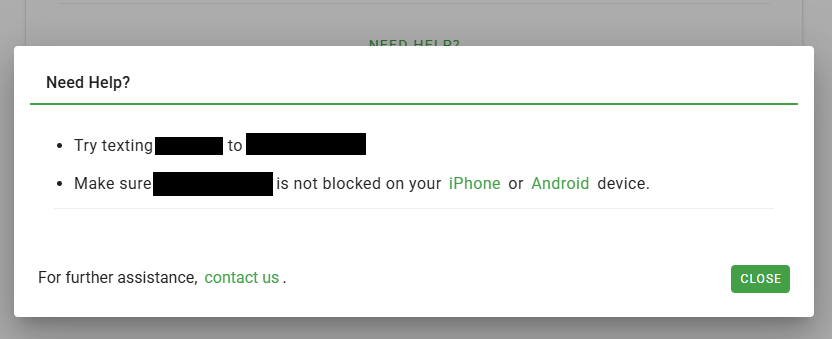
- If they still do not get the confirmation text, have them click on the “Need Help?” button and follow the specific directions that appear on that help screen.
- Ask your subscriber to re-sign-up by navigating to your Sign-up page.
- Scenario 1:The subscriber is not in your Active Subscriber list.
¶ Q: I have a user that cannot sign-in, how can I help them?
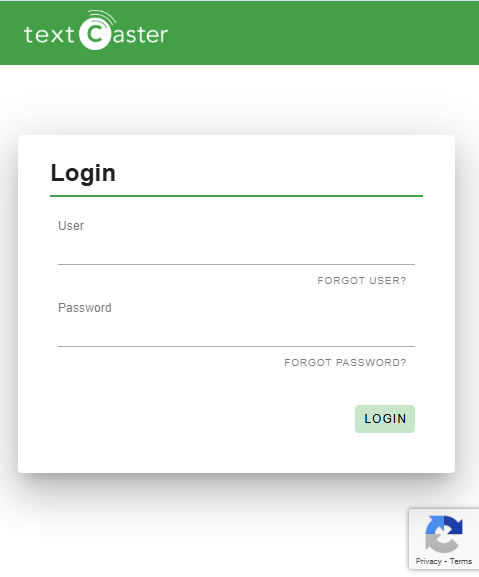
- A: The most common sign-in issues can be resolved using the "Forgot User?" or "Forgot Password?" features on the login screen, which both require an email address attached to the User Account.
- If the user is still having trouble, an administrator can take the following steps in Users Management:
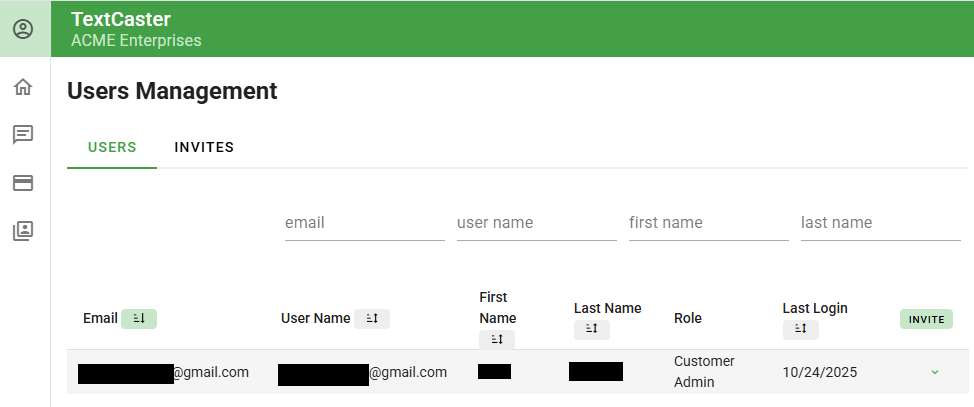
- Verify Email: Find the user's account and make sure there is a current, valid email address attached to it.
- Confirm User Name: Take note of the User Name for the account (this may be different from the email address).
- Confer with User: Share the confirmed User Name with the user and have them try the password reset feature again, ensuring they are using the correct login details and accessing the email associated with the account.
¶ Q: How to my subscribers update their message groups?
- A: To change their message preferences, subscribers simply need tosign up again with their updated selections. This action will automatically override and replace their current message group or preference settings.
¶ Q: I sent a message and no one received it.
- A: This is often an issue related to carrier filtering. To determine the cause, please follow these steps:
- Step 1: Verify the Scope of the Failure
- Test on a Known Device: Send a simple test message (e.g., "Test 123") to your own personal number (or a coworker's). If this message is delivered, the problem is with the original message content or the recipient list.
- Step 2: Review Message Content for Carrier Filtering
- If the message logged as Sent but was not received by anyone, it was almost certainly filtered by a mobile carrier due to content policy. Carriers use strict rules to protect consumers from unwanted or illegal messages.
- Check your message for any words or topics related to the following restricted categories:
- SHAFT Content:
- Sexually explicit or suggestive content.
- Hate speech, harassment, or profanity.
- Alcohol (promotion or sale).
- Firearms or violence.
- Tobacco (including vaping and federally illegal substances like cannabis/weed).
- Illegal Activities: Content related to fireworks, betting, gambling, or anything else that is not legal nationwide in the US.
- Spammy/Phishing Indicators:
- Excessive use of ALL CAPS, dollar signs ($$$), or special characters.
- Use of generic, unbranded URL shorteners (e.g., bit.ly).
- Repetitive, non-personalized content sent to a large list.
- SHAFT Content:
- Recommended Action
- Modify and Retest: Re-draft the message using plain, neutral language, removing any keywords that could be misinterpreted as illegal, high-risk, or promotional spam.
- Reach out to support: If the simple test message is delivered but the original is not, and you cannot identify a prohibited word, please contact our support team with the full text of the message and the delivery status from your logs. We can check if the message triggered a known block or needs manual review.
- Check your message for any words or topics related to the following restricted categories:
- If the message logged as Sent but was not received by anyone, it was almost certainly filtered by a mobile carrier due to content policy. Carriers use strict rules to protect consumers from unwanted or illegal messages.
- Step 1: Verify the Scope of the Failure