¶ First time TextCaster Log-in
¶ A. Accepting a User Invite
| Most users will gain access to their TextCaster account through an email invite sent by a customer administrator of their TextCaster service. |
1. Check your Email for an invitation from noreply@textcaster.com
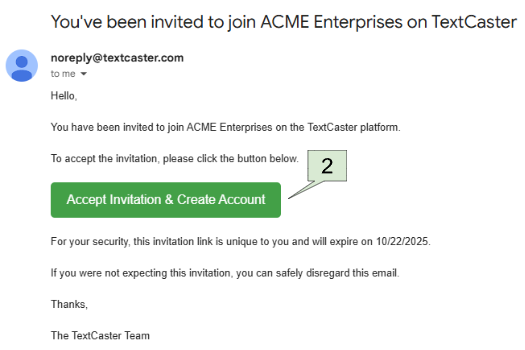
- 2. Click on the green box to accept Invitation & Create Account.
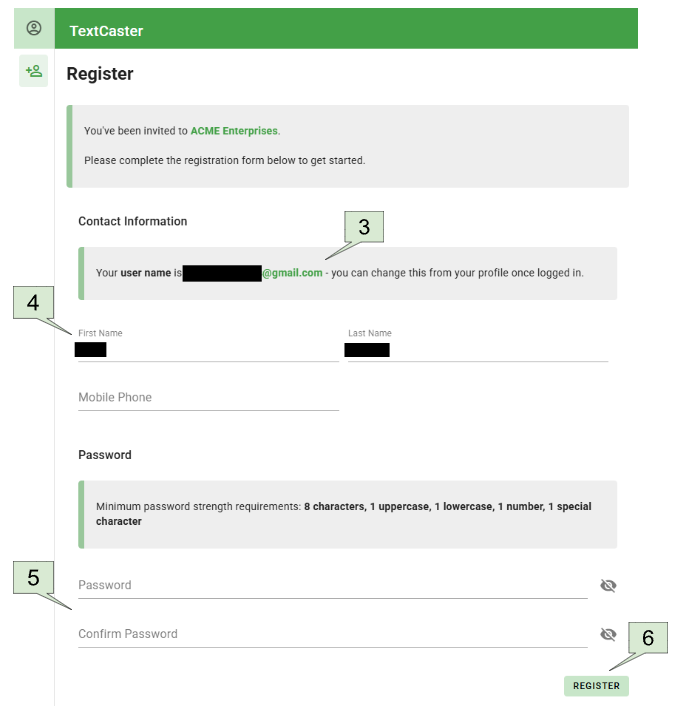
You will be asked to fill out a Registration form:
- 3. Please take note of your User Name
- 4. Correct your First Name, Last name, and Mobile Phone (optional) if necessary
- 5. Enter a password. Please note the minimum password strength requirements
- 6. Click on Register
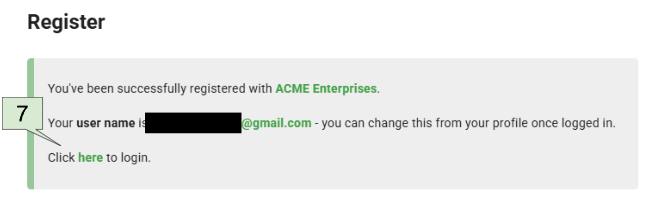
You will be presented with a successful registration screen. This screen will display your username
- 7. Click on “here” to login
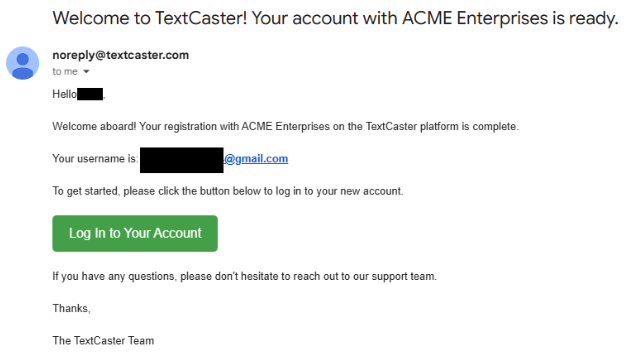
- Additionally you will be sent a welcome email
¶ B. For Users with existing credentials
¶ Login
| For users with existing credentials to our legacy platform (my.textcaster.com) who have not yet accessed the new dashboard experience (Dashboard.textcaster.com) |

- 1. Visit Dashboard.TextCaster.com
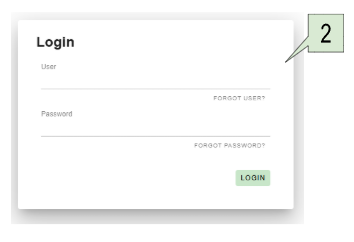
- 2. Log in with your username and password, using your existing credentials
¶ Confirm your Email Address
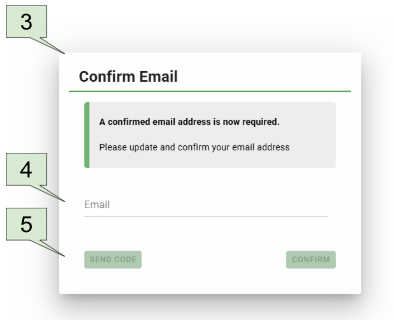
- 3. If your email address is not present or unconfirmed, a prompt will appear asking you to add or confirm one
- 4. Enter your email address in the provided field
- 5. Click “Send” to receive a verification Email
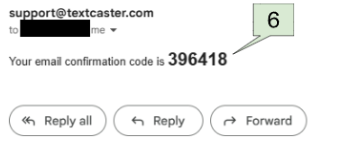
- 6. Check your email for a Confirmation code from “support@textcaster.com”
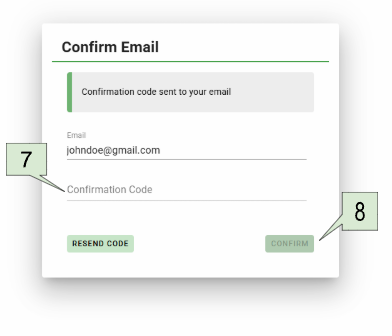
- 7. Enter your code in the "Confirmation Code" field
- 8. Click on “Confirm”
¶ Registration
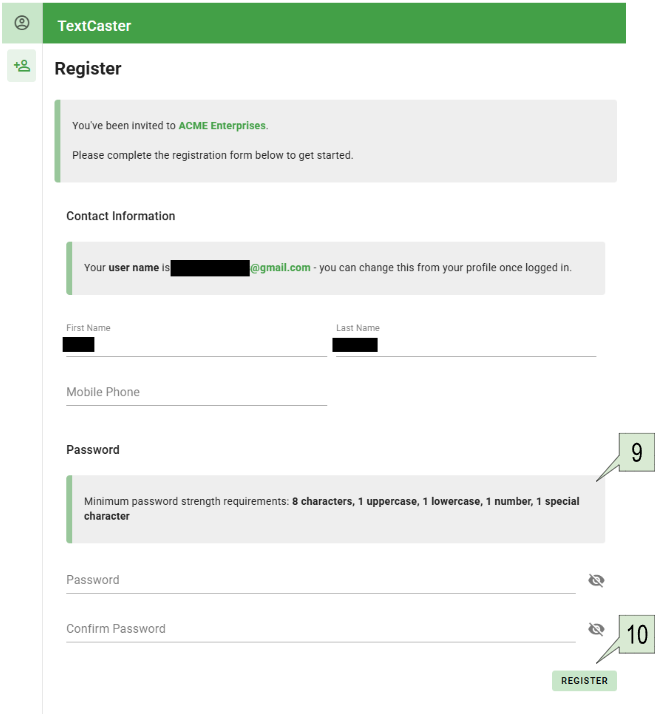
- 9. Upon successful confirmation, you will be asked to review your registration and enter a new password
- 10. After reviewing your registration data, click “Register”
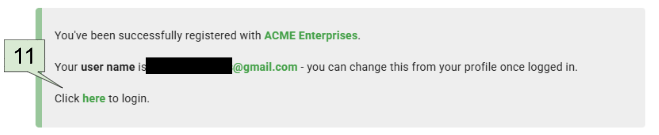
- 11. You will be logged out, click “here” to log in
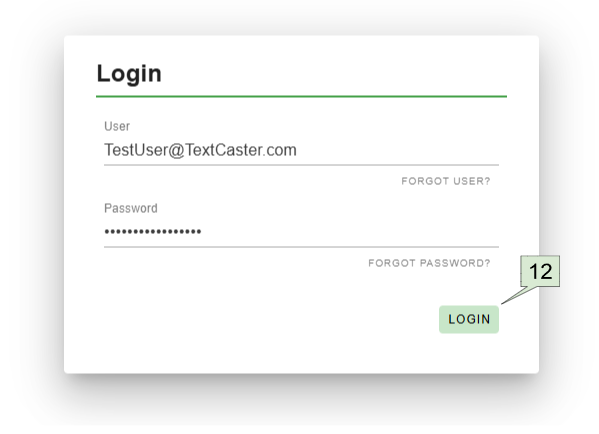
- 12. You will then be prompted to login with your new credentials
¶ C. Accessing Multiple TextCaster Customers with a Single User Account
| It is possible to manage multiple TextCaster Customer accounts using a single TextCaster User account (single sign-on). This feature works by associating the same email address with your user profile across all the customer accounts you need to access. |
Your TextCaster User account must have an email address associated with it.
If you need to add an email address or are unsure, click here for instructions.

To gain access to a second (or third, etc.) TextCaster Customer account, you must be formally invited by that customer's administrator.
Ask the Customer Admin of the TextCaster Customer you wish to add to invite you to their account.
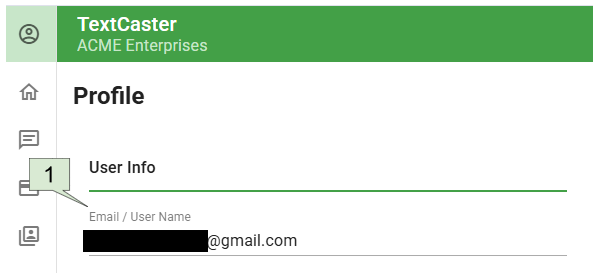
- 1. The Customer administrator must use the exact same email address that is attached to your existing TextCaster User account.
Once the Customer administrator has sent the invitation:
You will receive an invitation email from noreply@textcaster.com.
- 2. Click the link in the invitation email to accept the invitation.
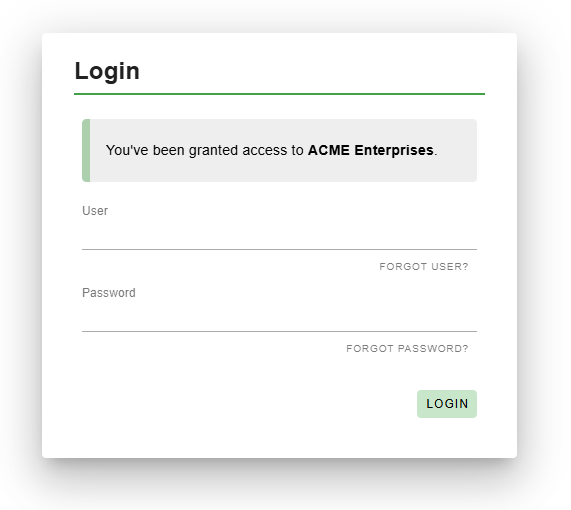
After accepting the invitation, your single User account will now have access to both TextCaster Customer accounts.
Log in using your existing Username and Password. (Your credentials remain the same).

Once logged in, look for a "Choose" button located on the top left of the screen.
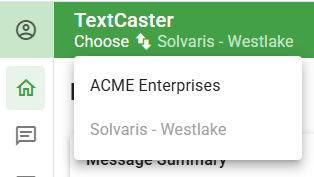
Clicking the "Choose" button will display a list, allowing you to select which TextCaster Customer's account you wish to interact with.